Bill To and Ship To Addresses
Every printed purchase order carries a Bill to and a Ship to. Bookkeep fills both from Shopify unless you tell it otherwise. You can set a name and address for all locations, give any Shopify location its own, and see what a purchase order will print before you send it to the supplier.
If you configure nothing, purchase orders print exactly as they do today.
How Bookkeep picks each address
Bookkeep checks three places, in order, and prints the first one it finds:
| Priority | Bill to | Ship to |
|---|---|---|
| 1. This location | Set on the location, under Settings → Printouts → Location addresses | Set on the location, under Settings → Printouts → Location addresses |
| 2. All locations | The Bill to block at the top of Settings → Printouts | The Ship to block at the top of Settings → Printouts |
| 3. Default | Your Shopify store name and store address | The location name, your store name if it differs, then the Shopify location address |
The location is the one selected on the purchase order.
The name and the address are chosen separately. A location can have its own Ship to name and still print the Ship to address set for all locations. Bookkeep labels the result with the highest priority it used, so a block that mixes a location name with an all-locations address shows This location.
Set the addresses for all locations
Go to Settings → Printouts. The Bill to and Ship to blocks apply to every purchase order that has no location override.
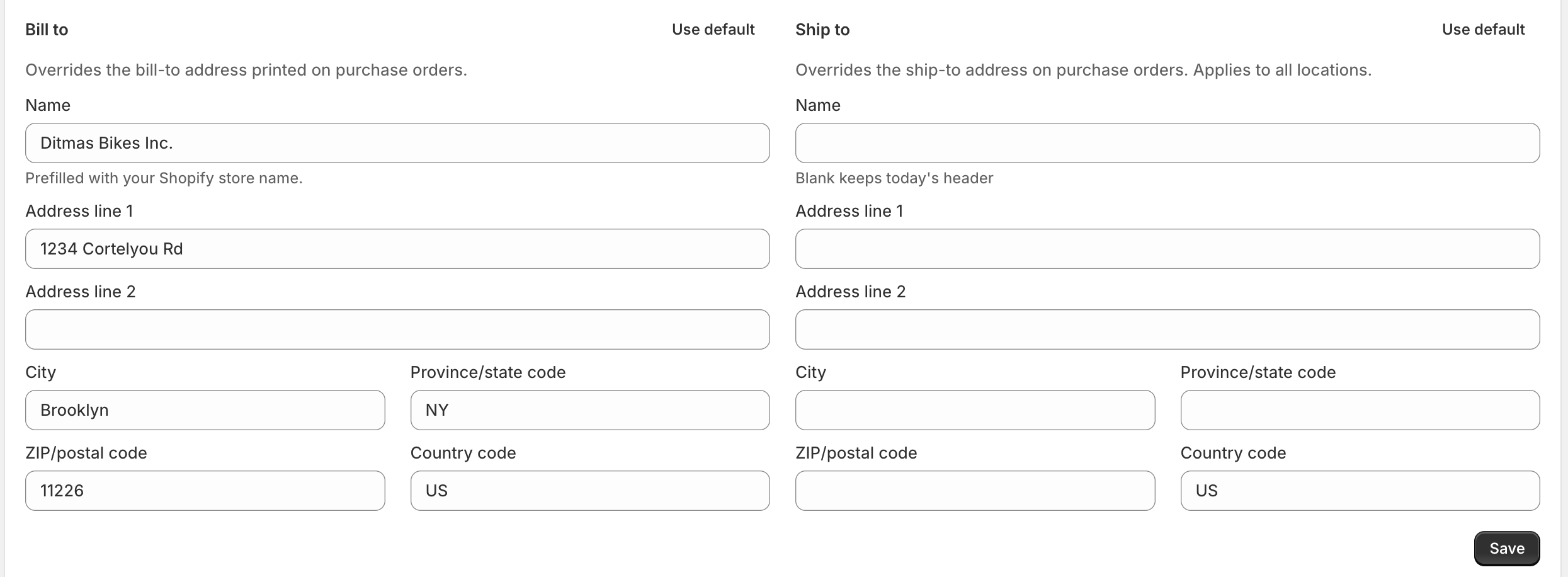
Name. The first line of the printed block. Bill to is prefilled with your Shopify store name. Ship to is blank, which keeps the default header of location name and store name. Fill it in when the printed name should differ from what Shopify calls your store or location, for example when your store name lists two shops and confuses suppliers.
Address lines, city, state, ZIP, country. Fill in whichever apply. Blank fields are left off the printout.
Use default. Clears the block and returns it to the Shopify values.
Click Save.
Give a location its own addresses
The Location addresses table lower on the same page lists every Shopify location with what its purchase orders will print. The badge tells you where each block comes from.
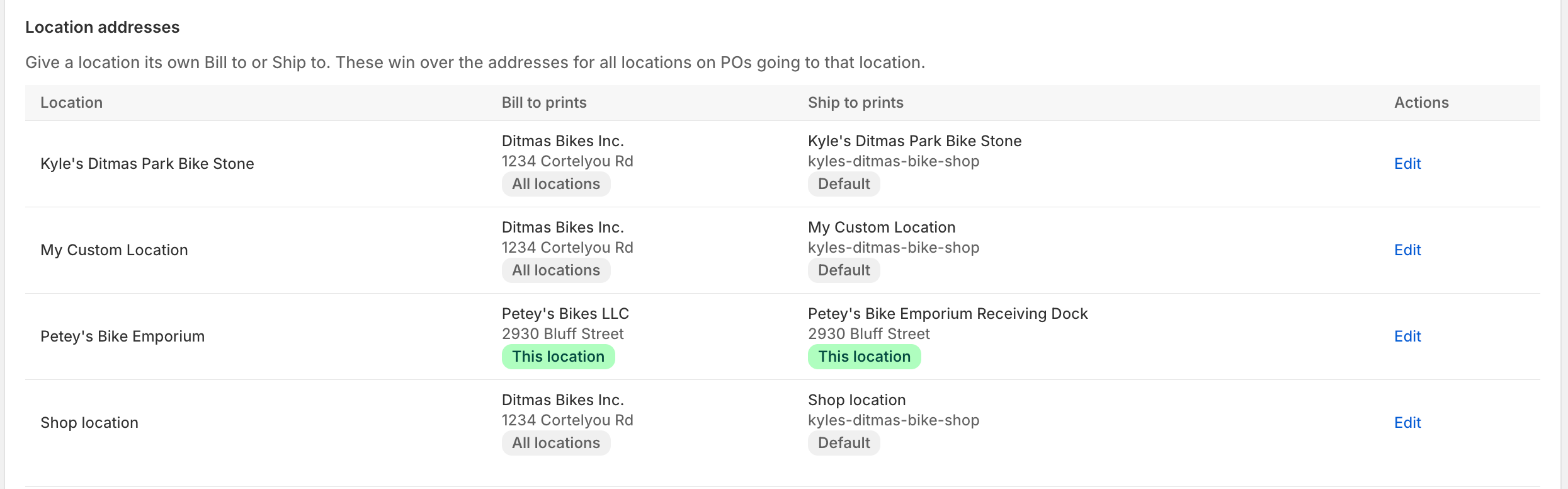
Click Edit on a location. For Bill to and for Ship to, pick one:
- Use the ... for all locations keeps the block from the top of the Printouts page. What it prints is shown under the option.
- Set for this location opens name and address fields for this location only. Bill to is prefilled with the all-locations Bill to. Ship to is prefilled with the Shopify location address shown at the top of the page.
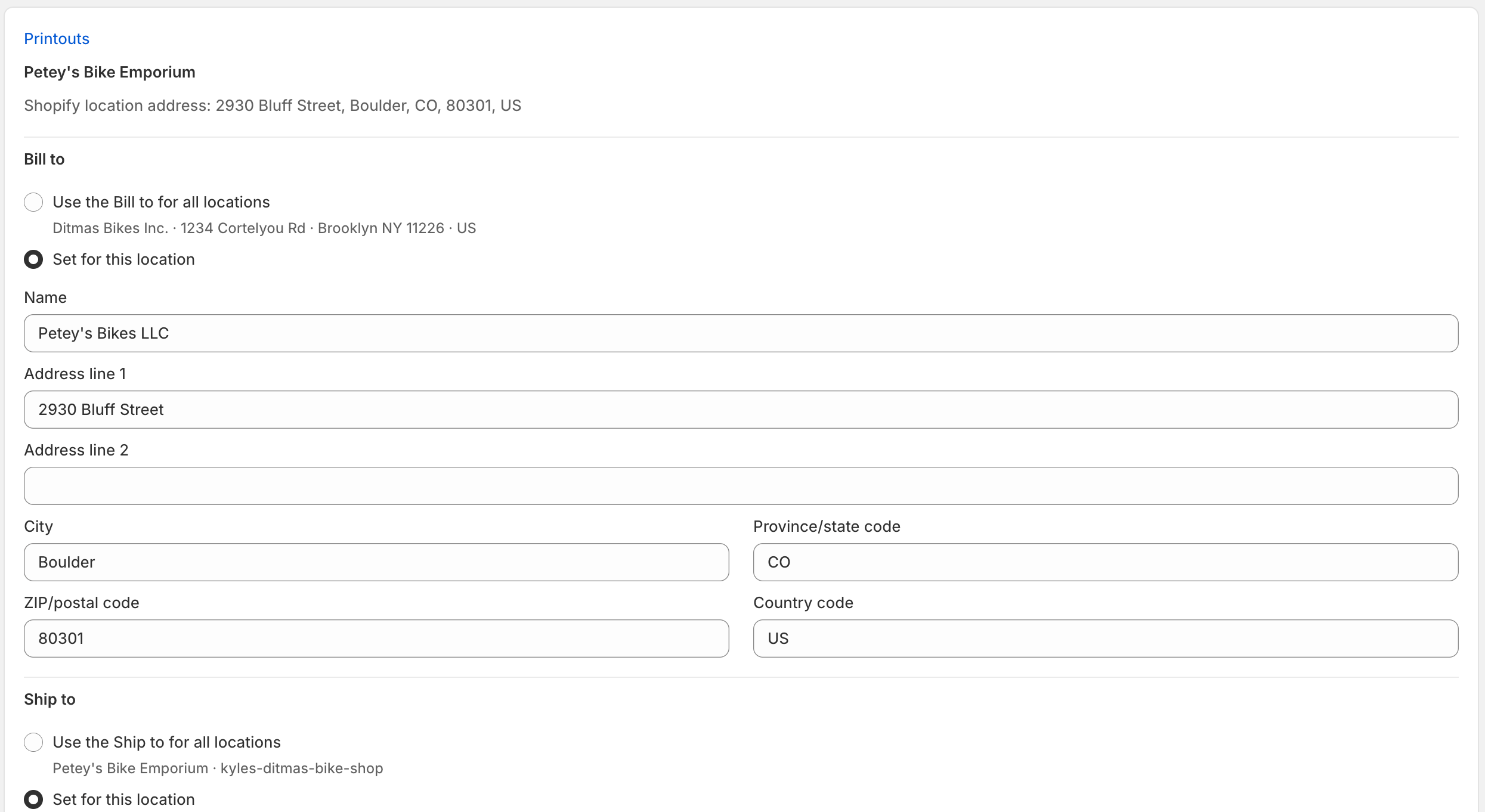
Click Save. The table updates and the badge changes to This location.
A location override wins over the all-locations block for every purchase order going to that location. To remove it, open the location again and switch back to Use the ... for all locations.
Check what a purchase order will print
Open any saved purchase order. The Printed addresses card sits under Details and shows the Bill to and Ship to names with their source badges.
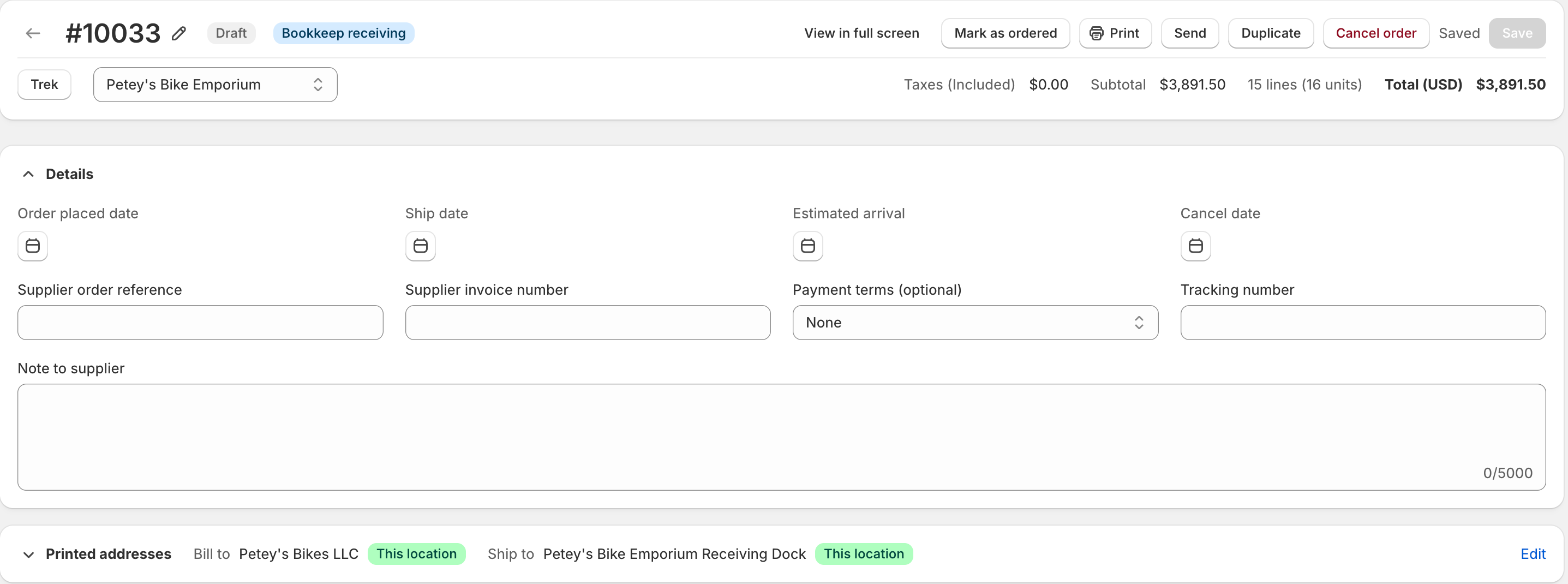
Expand the card to see the full address for each.

A purchase order going to a location with no override shows the all-locations blocks. In this example the all-locations Ship to is blank, so the default prints.

Edit opens the location page for this purchase order's location. There is no per-purchase-order address. Change the location's addresses and every purchase order going there, including this one, picks up the change the next time you print.
What the card shows is what Print puts on the PDF.
See First Time Setup for the rest of the Printouts settings.