First Time Setup
Bookkeep Inventory settings live under Settings in the app's main navigation. This guide uses three of its pages: Purchase orders, Landed cost fees, and Printouts. This guide does not focus on migrating from Stocky, as it is covered in this guide.
Summary
- Decide how your costs will work. Read Decide how costs work before anything else.
- Create/Import suppliers.
- Set a starting PO number and your cost push method under Purchase orders.
- Define your fee types under Landed cost fees.
- Seed your opening costs.
- Build your first purchase order.
Decide how costs work
Two decisions shape every cost number you will see, and both are easier to make before your first receipt.
Where costs come from. Bookkeep only knows a cost for an item once you receive it on a Bookkeep purchase order or load an opening cost. It does not read Shopify's cost per item. Until one of those happens, the item shows no cost and no value in the Inventory on Hand report. If you already have costs in Shopify or another system, seed them first so your reports are complete from day one. See Seed your opening costs.
Which cost goes to Shopify. Bookkeep always tracks weighted average cost (WAC) internally. The Shopify cost push on receipt setting decides whether Shopify's cost per item gets that WAC or the last cost you received. It changes nothing in Bookkeep's own reports, and you can change it later. Choose Your Cost Tracking Method explains the difference and what happens when you switch.
Suppliers
Every purchase order names a supplier, so create them first. You can manually create suppliers in line with your PO workflow; or, if you'd like to create them in advance, go to Suppliers and add them by hand or upload a CSV.
Suppliers don't sync from Shopify. A new vendor on a Shopify product does not create a Bookkeep supplier, so create the supplier before you raise a PO against it.
To link products to a supplier, add them as lines on a draft PO for that supplier. The link is created even if you never place the order, and it holds the supplier price and Supplier SKU for that product.
The only required column is Name. Matching is exact and case-sensitive, so Agron and agron become two suppliers. The same page exports your suppliers to CSV.
Re-uploading a CSV matches each row on Name and updates that supplier; blank cells leave its existing values alone, so a re-import can't clear a field.
Fields under Business that change how POs behave:
- Currency: sets the currency of every PO raised against this supplier. Read Currencies before you fill it in. In the CSV,
basemeans your shop's currency. - Payment terms and PO notes template: copied onto each new PO for this supplier.
- Forecast suggestion period (days): the window used for suggested order quantities. Forecasting is in beta.
Starting PO number. Bookkeep numbers purchase orders from here. You cannot create a purchase order until it is set. We recommend using a starting number distinct from those generated from other systems you might use (POS, ERP, etc.) Note: it cannot be changed from this screen once saved (though you can request a change by emailing Bookkeep Support).
Shopify cost push on receipt. The cost written to Shopify's cost per item when a receipt syncs: Weighted average cost (WAC), the default, or Last cost received. It applies to future receipt syncs only and never changes Bookkeep's own reports. A manual push from a PO line always sends the current WAC. Choose Your Cost Tracking Method explains the difference and what happens when you switch.
Landed cost fees
Click Add fee type for each charge that should become part of item cost: freight, duty, brokerage, a supplier discount. Each type takes a Name, a Kind of Fee or Discount, and a default Allocation method of By value or By quantity. Clear Active to retire a type without removing it from past receipts.
Charges that should stay out of item cost, like a credit card surcharge or a box of testers, need no fee type. They go on the receipt as additional fees. See Configure Fees and Discounts.
Seed your opening costs
Skip this and each item has no cost until its first Bookkeep receipt, which then becomes its entire cost basis. Stocky users upload the variant CSV under Settings → Stocky import, see Migrating from Stocky to Bookkeep Inventory. Everyone else, send us a CSV of Shopify variant IDs and average costs and we load it for you. Seeding writes to Bookkeep only and changes nothing in Shopify.
Printouts
Printed note. Prints on every purchase order regardless of status.
Bill to and Ship to. The name and address printed on every purchase order. Each block has a Name field, so what prints can differ from what Shopify calls your store. Bill to is prefilled with your Shopify store name and address. Leave Ship to blank to print the location name and the Shopify location address. Click Use default to clear a block.
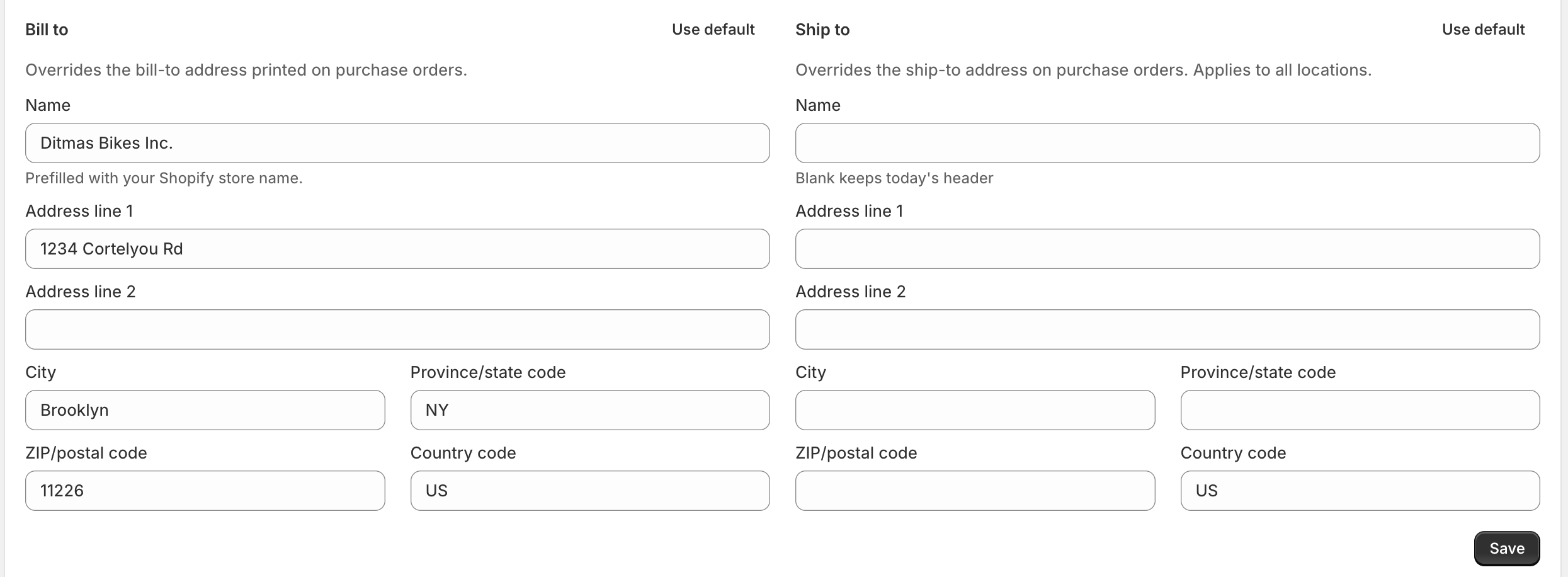
Location addresses. A table of your Shopify locations and what each will print. Click Edit to give one location its own Bill to or Ship to. The location wins over the blocks above for purchase orders going there. Every saved purchase order shows the result in its Printed addresses card. Bill To and Ship To Addresses walks through it.
Logo. PNG or JPEG, 5 MB or smaller.
Currencies
Every purchase order is in your shop's currency. Bookkeep does not convert, so suppliers who invoice in another currency get their costs converted before the PO is built. Currencies covers supplier setup, landed cost fees, seeding opening costs, and shops in two currencies.