Shopify Payments Reporting
The Shopify Payments Reporting dashboard shows the money Shopify still owed you as of a date you choose: payouts that had been issued but not yet deposited (in transit), and sales that had not been included in any deposited payout at all (undeposited orders). Use it to reconcile your Shopify Payments balance at a period end and to see exactly which days, payouts, and orders make up that balance.
You'll find the report in Bookkeep under Reports → Shopify Payments Reporting. It requires a Shopify connection and is available on the Pro plan and above (or with the Order-to-Cash add-on).
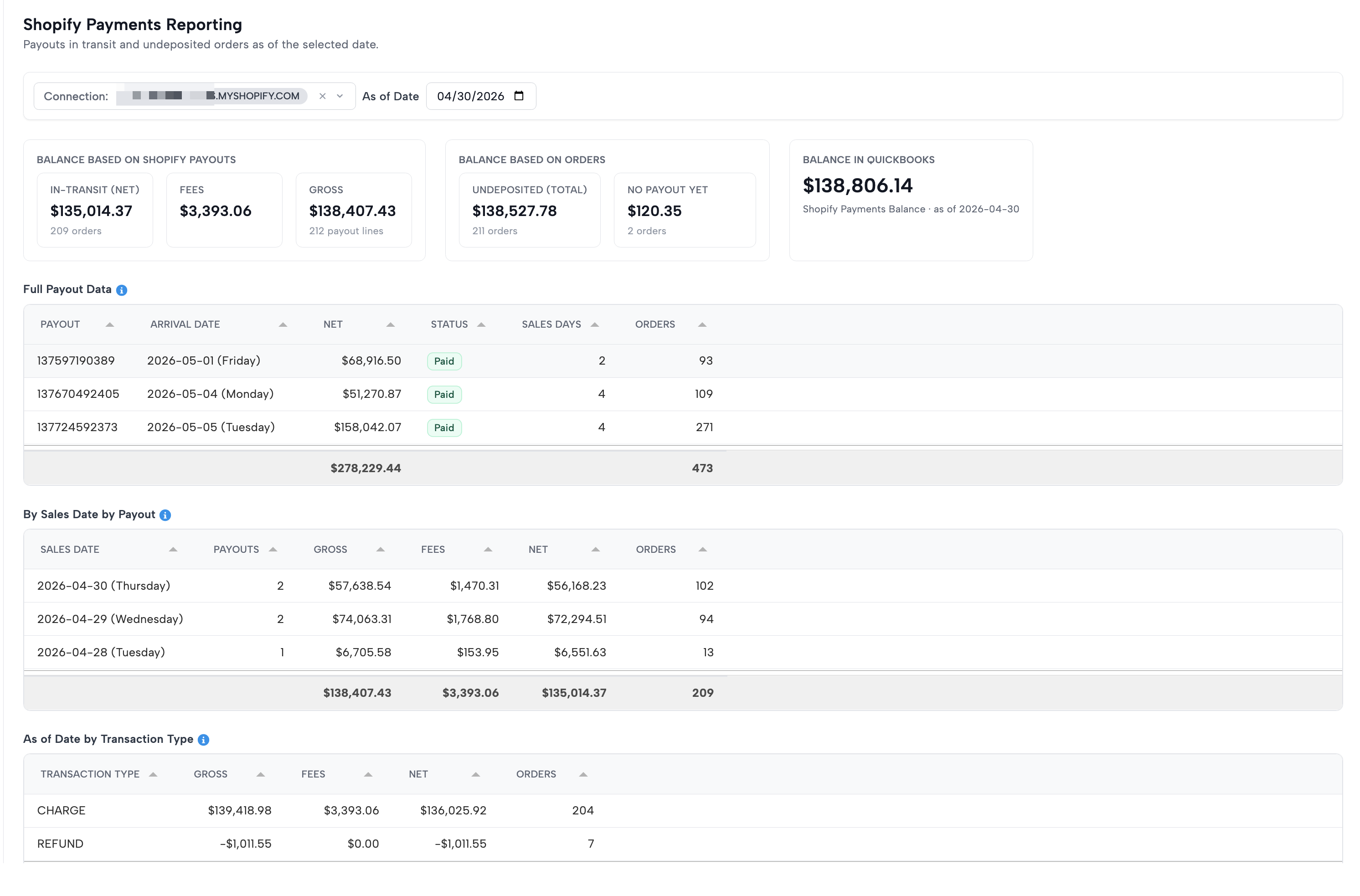
Choosing a connection and As of Date
Pick a Shopify store from the Connection dropdown and select an As of Date. Everything on the page is computed as of that date — sales on or before it whose payout was issued after it (or not yet issued) count as in transit or undeposited. Because payouts settle with a day's lag, the latest selectable date is yesterday.
How the report decides what's "deposited"
A payout counts as deposited when its issued date is on or before the As of Date. A payout issued after that date — or not yet issued at all — is in transit, regardless of the status Shopify shows on it. This keeps the report a true point-in-time picture: it shows the world as it stood on the date you chose.
Summary cards
Three cards appear above the tables:
- Balance Based on Shopify Payouts — the payout-side view: the net, fees, and gross of every payout still in transit as of the date, with order counts.
- Balance Based on Orders — the order-side view: sales with no deposited payout, split into the total undeposited amount and the portion with no payout created yet. This catches money the payout side can miss entirely.
- Balance in QuickBooks — what your books say. If the Shopify Payments Balance line of your Shopify Payments Deposit journal entry mapping is mapped to a QuickBooks account, Bookkeep pulls that account's balance as of the same date from your QuickBooks balance sheet. When all three views agree, you're reconciled; when they don't, the tables below show you where to look. The card loads a moment after the page (it queries QuickBooks live), shows No account mapped if the mapping line isn't set, and currently supports QuickBooks Online only.
Tables
Hover the map icon next to any table title for a short explanation, and click rows to drill in.
Full Payout Data
One row per payout that was in transit as of the date: the payout ID, arrival date, net amount, status, Sales Days (how many distinct sales dates the payout covers), and order count. Click a payout to see its day-by-day gross, fees, and net breakdown — the Sales Days count equals the number of rows in that breakdown.
By Sales Date by Payout
The same in-transit money rolled up by the sales date it was earned, with how many payouts each date's sales landed in. Click a date to see how much of that day came from each payout, including each payout's arrival date.
As of Date by Transaction Type
In-transit money grouped by Shopify transaction type — charges, refunds, adjustments, and disputes — each with gross, fees, and net. Useful when the payout total doesn't match your sales because refunds or adjustments are riding along in the same payout.
Undeposited Orders by Sales Date
Sales dates with money not yet deposited, one row per date and status:
- In Transit — the sale is in a payout, but that payout was issued after the As of Date (or hasn't been issued yet).
- No Payout — Shopify has not put the sale into any payout yet.
Only the three months before the As of Date are included, so old stragglers don't accumulate forever.
Click a row to open the list of orders behind that date. Each order shows its undeposited amount, status, and transaction count, and two links:
- the order number opens the order in your Shopify admin, and
- the Source ID opens Bookkeep's Order Ledger Diagnostic for that order — the full ledger picture when an order looks stuck.
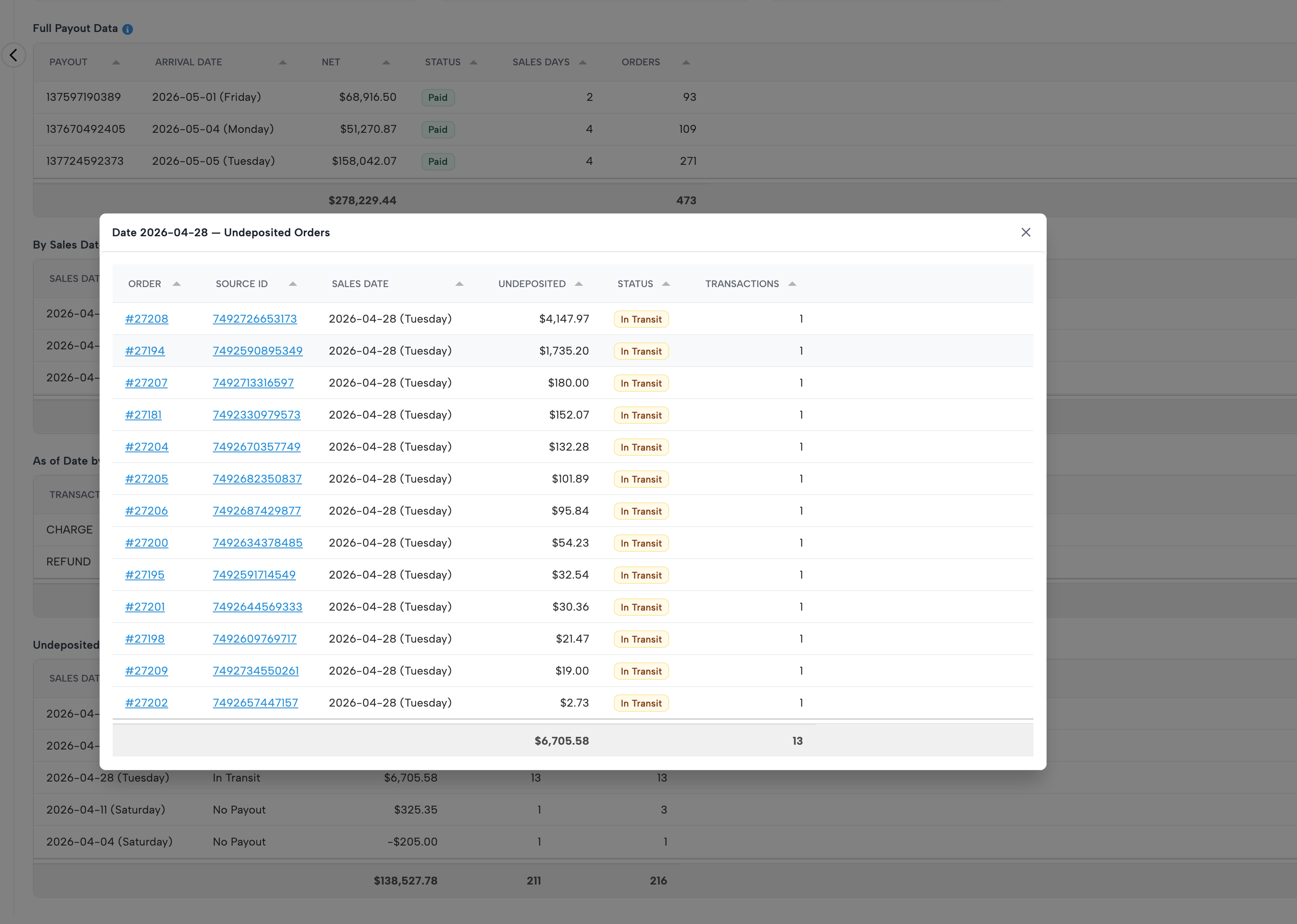
An order can appear twice in the list when part of it is in transit and part has no payout — each portion is counted where it actually stands.
Reconciling with the report
A practical month-end flow:
- Set the As of Date to the period end.
- Compare the three summary cards. Balance Based on Shopify Payouts plus No Payout Yet should explain the difference between your bank deposits and your sales.
- If the Balance in QuickBooks card doesn't match, open Undeposited Orders by Sales Date and drill into the dates that make up the difference — the order list tells you exactly which orders (and which portions of them) are still waiting on a deposit.