Matching your Amazon Seller Payouts to Amazon Reporting
Understanding how Bookkeep posts Amazon Seller deposits is critical to align with the reporting from Amazon Seller. Below we show the side-by-side alignment between the Amazon Seller reporting and our journal entry for Amazon Seller deposits.
Accessing Amazon Seller Reports
Step 1: Navigate to Reports
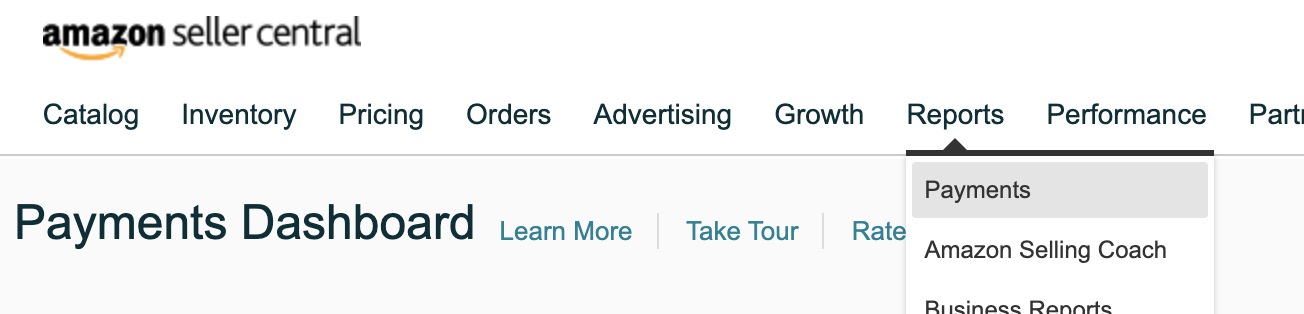
First, log into your Amazon Seller dashboard and locate "Reports" in the top navigation, as shown below:
Step 2: Access Payments
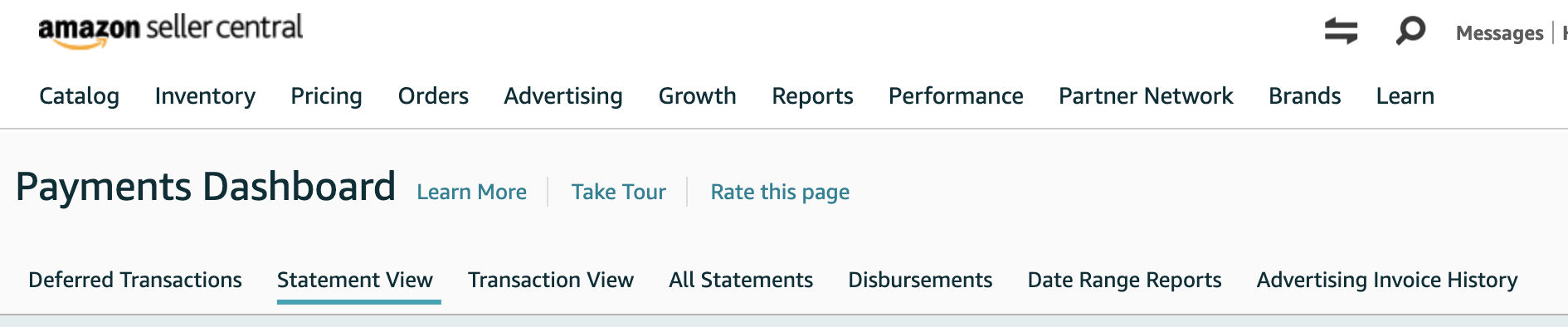
When you hover on "Reports", you will see "Payments" as the first option. Click on "Payments." This will take you to the Payments Dashboard, as shown below:
Step 3: Access Disbursements
Click on "Disbursements," which is third from the right on the bottom (see image above).
Once on the "Disbursements" view, you will see an option to filter based on date if you are looking for a specific payout:

Viewing and Comparing Payouts
Step 4: View Payout Summary
You will see a list of payouts in this view with an example shown below. The example shows the payout amount and the dates for when the payout occurred. You can also click "View Summary" in the top right to see more about a specific payout.

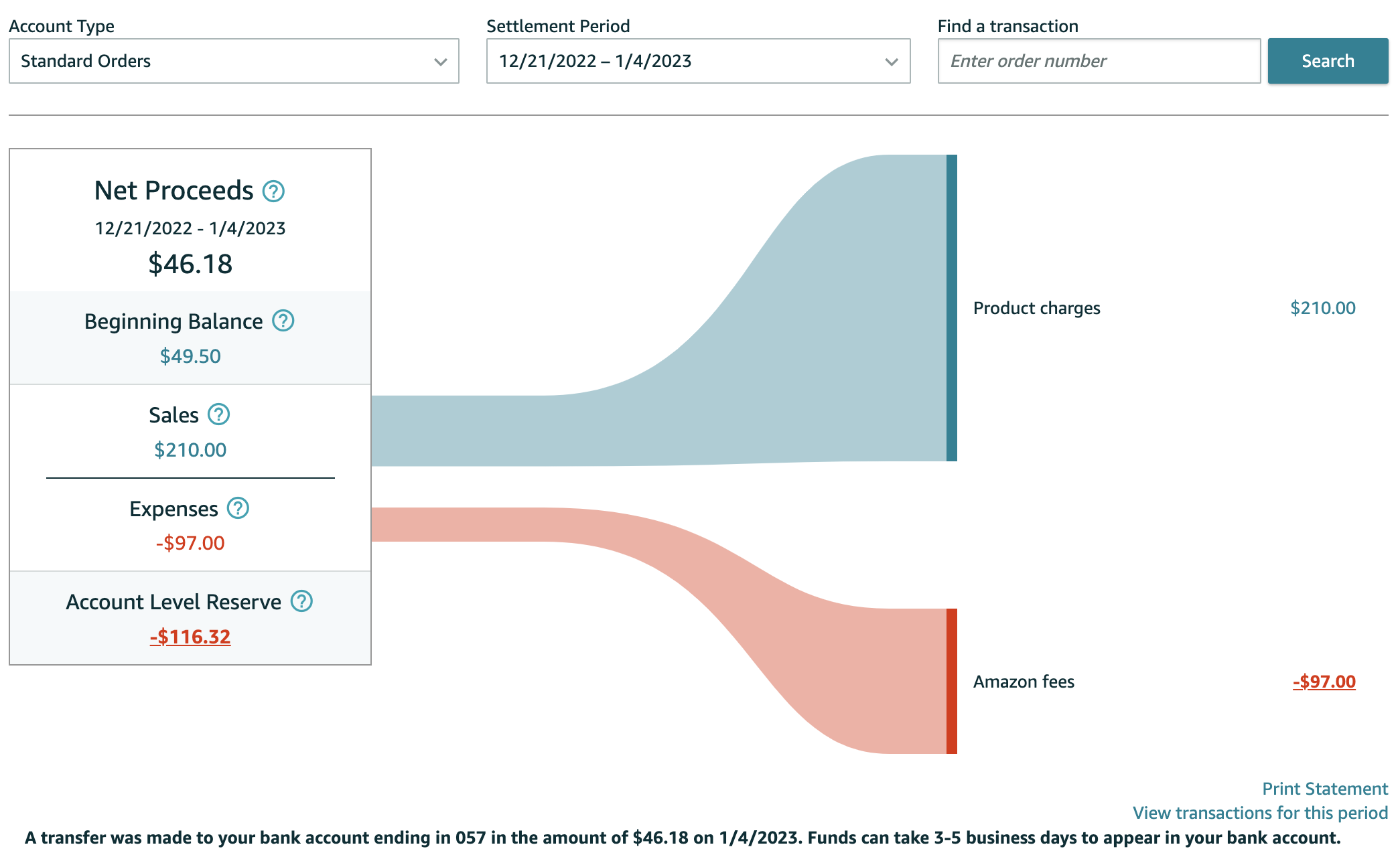
Below is an example screenshot of the summary for a specific payout after clicking "View Summary":
Step 5: Review Bookkeep Posting
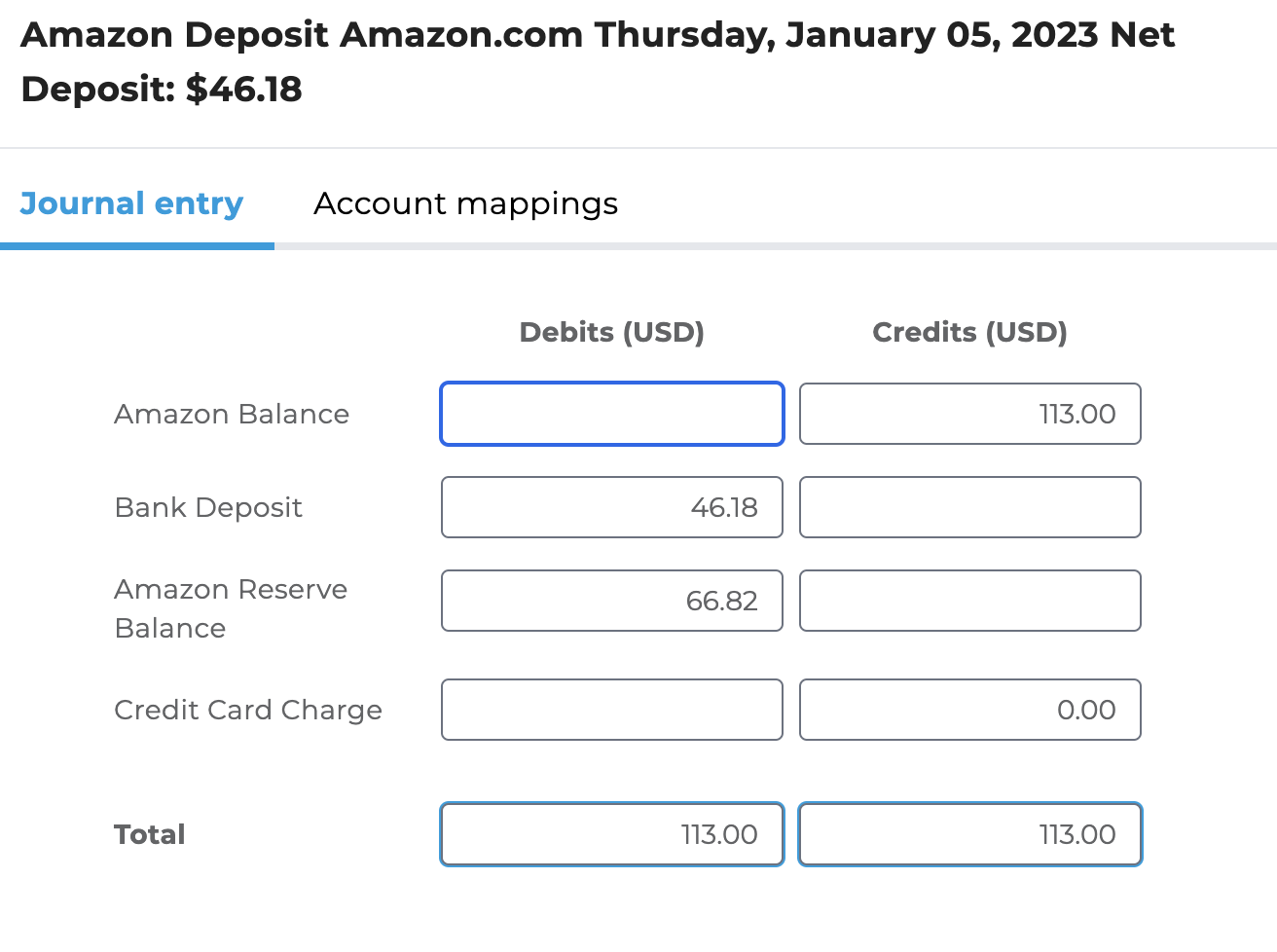
Below is the posting completed by Bookkeep. One thing to note is the Amazon Reserve Balance of 66.82 in the entry below posted by Bookkeep represents the change to the reserve balance and not the current reserve balance. In the image above, the current reserve is -116.32 while the posting below represents the change to the reserve balance:
The Reconciliation Report Attached to Every Deposit
Each Amazon Deposit entry carries one reconciliation report, amazon_reconciliation.csv, next to the settlement report's rows (orders.csv) and the per-date rollup. It is built when the deposit is posted, from Amazon's data, and answers the three questions a reconciler asks at payout time, in that order.
The file does not read your accounting platform. It states what the figures should be; you compare them to your books in QuickBooks, Xero or whichever platform you use. For QuickBooks Online, the Amazon Payment Settlement Reconciliation report in Bookkeep does that comparison for you: it shows these figures next to the live QuickBooks balances of the mapped accounts, with the difference.
How to read it
The file has five columns: section, item, amount, status, note, and every figure in it is in the currency Amazon settled in; a deposit Amazon converted to your books' currency shows the conversion on a Booked in your books as line. The status column carries three values only: TIES or OK when a check passes, CHECK when a line needs a look, and blank for a plain figure. The top block is short enough to read at a glance:
| Section | What it tells you |
|---|---|
| PAYOUT | Opens with the marketplace and seller id the file belongs to, so a downloaded file is identifiable on its own. Then this settlement as the row on Amazon's All Statements page: period, pay date and bank trace id, then Beginning Balance, Sales, Refunds, Expenses, Others and the Payout Amount. TIES means the columns add up to the amount Amazon paid, to the cent. |
| DAILY ENTRIES | One line: how many days are in the period, how many daily sales entries posted and agree with this payout, how many are missing, how many differ. Below it, only the days that need a look, each with the difference and the reason. On the first and last day of the period only part of the day belongs to this payout, so those days compare against the daily entry's Post-deposit and Pre-deposit lines; the daily entry splits the day at the close of the main settlement, so when a smaller settlement (Invoiced Orders, for example) started or closed on a day where there is no split, or where the split belongs to a different settlement, those half-day figures cannot line up. In that case the whole day is compared instead: this payout plus every other settlement active that day against all of the daily entry's Released lines. The row is labelled start (whole day) or close (whole day) and its note keeps the half-day figures. |
| BALANCES AFTER PAYOUT | What Amazon Balance, Amazon Deferred Balance and Amazon Reserve Balance should hold at the end of the deposit date, after the payout has left Amazon Balance. Compare each to the same account in your books as of that date. The Amazon Balance figure is not a leftover to clear: it is the opening position of the period now running, made of the deposit day's releases after the statement closed (the daily entry's Post-deposit lines) plus any other settlement series Amazon has not yet paid. The "of which" lines beneath it name each one. |
| NOTES | Anything that qualifies the figures: a day Amazon's data was not yet cached, a balance Amazon carried forward from an unpaid period (which belongs in Amazon Balance, not Reserve), and where the statement rows came from. |
| DETAIL | Every row behind the figures above: the statement record and Statement View breakdown, the day-by-day comparison of daily entries, the unpaid settlements and the deferred amounts by origin date. |
A payout that reads TIES, a daily-entries line that reads OK, and three balances that match your books means the period is fully reconciled. A CHECK points at the exact line to investigate.
The three balances are also written into the deposit entry itself. The entry's private note ends with a line like Balances after this payout (end of 2026-09-01): Amazon Balance $17,474.79, Deferred Balance $16,299.49, Reserve Balance $0.00, so the figures are visible in your accounting platform without opening the file, and the Amazon Payment Settlement Reconciliation report reads them from there. Amazon's Payments Dashboard shows the same three numbers live as the Standard Orders balance, Deferred Transactions, and the reserve when one exists. The Deferred and Released Sales Summary entry for the last day of each month carries the same three balances as of the end of that day (see Amazon Deferred Transactions), so a month-end close has a figure even when no payout landed that day.
Sales on the statement are the sales Amazon released into the payout period. On the Deferred and Released Sales Summary your daily entries book each sale when Amazon defers it, about a week earlier, so the statement's Sales figure will not equal the sales your daily entries booked over the same dates. The difference is the change in your Deferred Balance over the period. See Amazon Summary Template Retirement for which Amazon report each template matches.
If a part of the report cannot be produced, its section reads CHECK with the reason, the other sections still appear, and the deposit entry still posts.
Please write to support@bookkeep.com if you have any questions.