Xero Tax Rates: Handling Zero-Tax Lines
Overview
When using Bookkeep with Xero, accurate tax mapping is essential to ensure your financial data is posted correctly.
For supported integrations—including Clover, MindBody, Square, Shopify, SumUp, and Squarespace—Bookkeep allows you to map tax data to Xero tax rates based on the sales tax labels.
This article explains how tax rates are applied and how zero-tax lines are now handled to support more flexible and accurate accounting.
How Tax Mapping Works
Bookkeep allows you to map tax data from your connected apps to the appropriate Xero tax rates, including:
-
Sales tax / VAT
-
Jurisdiction-specific rates
These mappings ensure that:
-
Revenue is recorded correctly
-
Tax liabilities are accurately tracked
Historical Behavior for Zero-Tax Lines
Previously, when a transaction line did not have an associated tax rate (for example, non-taxable items or services):
- Bookkeep would pass a single default zero tax rate to Xero
👉 While this worked for many use cases, it created limitations when more granular control was needed.
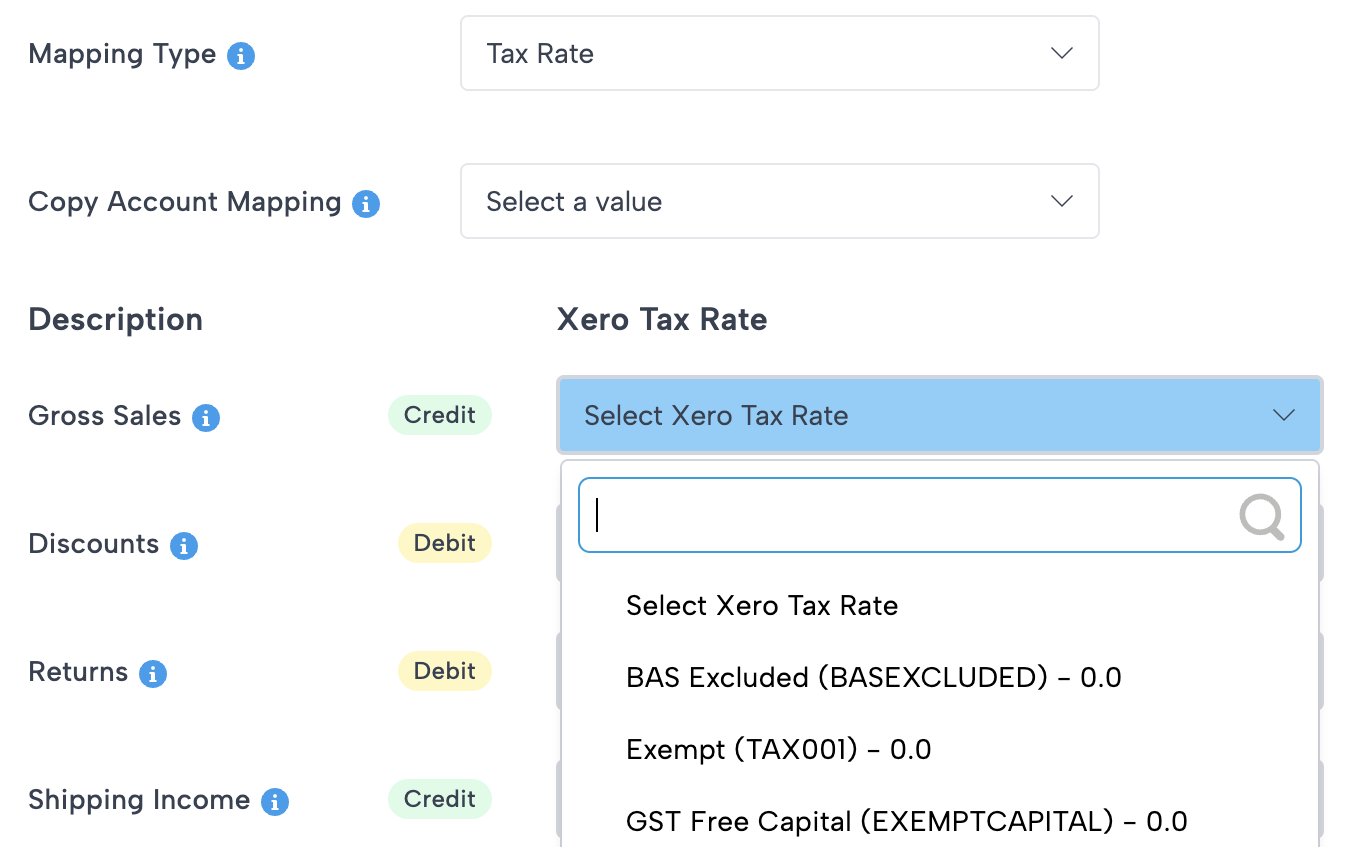
New: Zero-Tax Rate Mapping Per Line
To support more advanced accounting workflows and custom mappings, Bookkeep now allows you to:
- Explicitly map a zero-tax rate to individual lines
This means that for any line where tax is not applicable, you can assign any 0% tax rate in Xero.
Best Practices
-
Review your Xero tax rates and ensure a 0% tax rate is configured
-
Apply zero-tax mappings for non-taxable lines
-
Use consistent mappings across integrations for cleaner reporting
Summary
-
Bookkeep supports tax rate mapping for Xero across multiple integrations
-
Previously, non-taxable lines were posted with a single default zero tax rate
-
You can now explicitly map a different 0% tax rate per line
-
This improves accuracy, flexibility, and reporting within Xero